Consistent Character AI Video Generator
Give your recurring cast a visual starting point. Review or upload character references, select the designs for your story and compare the generated clips with them as the action moves between scenes.
Pay with Gems. No subscription required.
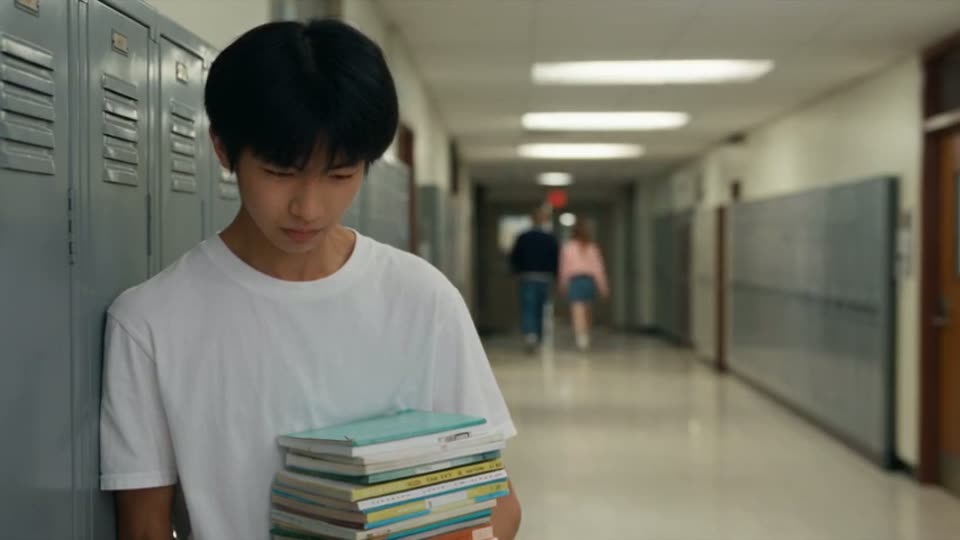
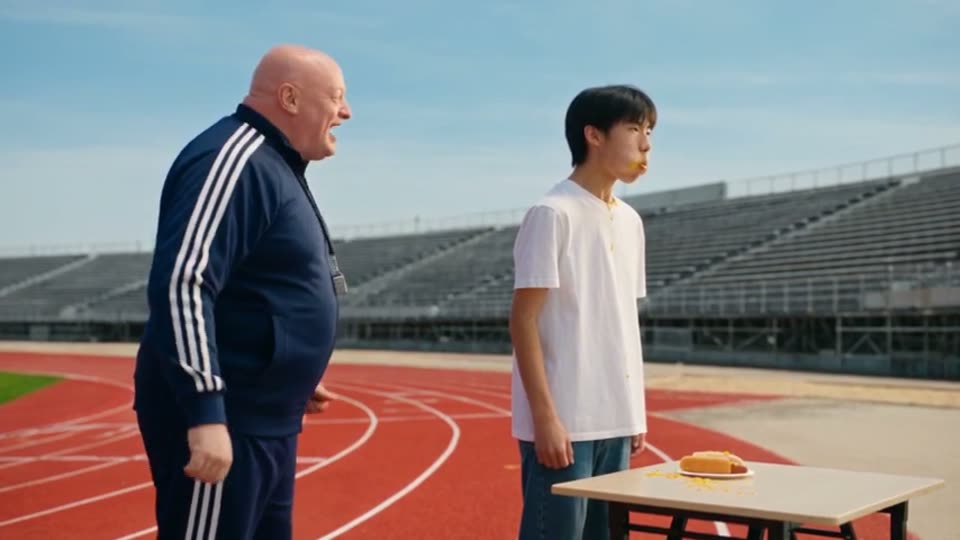
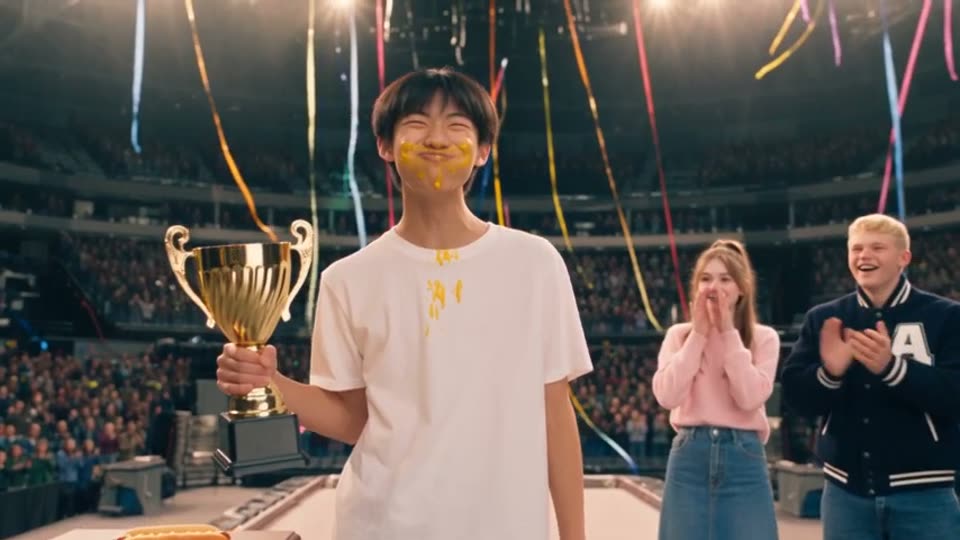
Compare a reference design with three finished clips
Mike's reference design appears alongside frames from clips 1, 5 and 10 of Hot Dog King. Compare his face, hair, clothing and proportions as the setting changes from the corridor to the track and podium. Open the source to watch the movement as well as the still frames.

How it works
- Step 1
Prepare the character
Review a generated design or choose your own reference image. Check that the important features are clear.
- Step 2
Review the scene references
Confirm the cast and available reference selections for the clips you plan to generate.
- Step 3
Choose your takes
Watch the generated clips, refine individual scenes and assemble your selected takes.
Start with references you can inspect and reuse
Prepare character designs before generating the scenes that use them. Review the face, hair, build and outfit in each reference image, or select an image you already have. Keep the chosen designs together with the story so you can check them when planning another scene.
Zoromi also organizes location and prop designs. Select the references for each clip using the input options available in your chosen workflow and model, so the scene has the cast and setting you intend.
Keep identity and story changes clear
Use a saved character when the same person returns in a new scene or episode. Describe changes such as a new outfit or setting in the story, and inspect the selected reference so its appearance matches your intention.
Use the same saved designs for a recurring drama cast, a character leading a series or a story following one person through different places. Watch complete takes to choose the performance, movement and framing for your scene.
Refine a scene with individual takes
Choose the reference design and describe the action, camera angle and setting for the scene. Review its finished takes alongside the rest of your story and select the version you want to use.
To try another direction, update the scene instructions or selected references and generate a new take for that clip. Previous takes remain available, so you can compare versions and keep the rest of your episode.
Questions
Can I use my own character image?
Yes. You can upload an image or select one from your library for a character reference. Check that the intended design is selected for the relevant clips and that your chosen generation settings support the reference inputs you need.
Can I reuse locations and props too?
Zoromi organizes reference designs for characters, locations and props. Select the designs relevant to each scene and review how they appear in the generated footage.
How do I bring a character into another scene?
Select the saved character design for the new scene, then describe its action, setting and dialogue. The reference provides a visual starting point for the returning character. You can review the clip and choose from its saved takes before adding it to the episode.
How do I use an updated character design?
Select the updated reference and generate a new take for the scene you want to change. Your previous takes stay available for comparison, and you choose which version to include in the finished video.
More answers in the FAQ and current rates on the pricing page.
Try it with your own story
Bring your story, then choose what to generate.
Create with character references