How to build a recurring cast for AI video
2026-09-22 · about 4 minutes to read
Character continuity starts with a reusable visual design. Save an image of each cast member, select it for the scenes where they appear and describe each scene's action, dialogue and setting. Zoromi organizes character, location and prop references with your story so you can build on the same designs as the production continues. Your chosen workflow and model determine the reference inputs you can use.
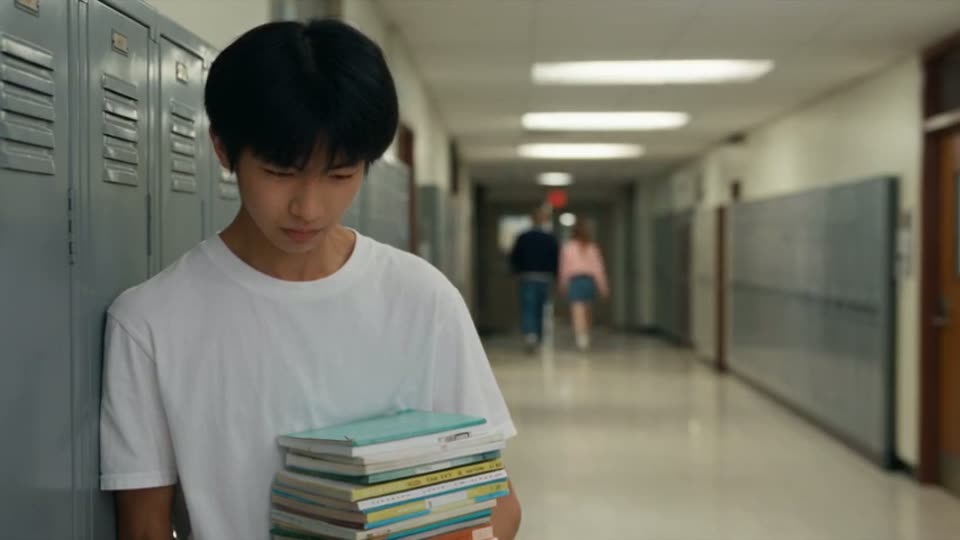
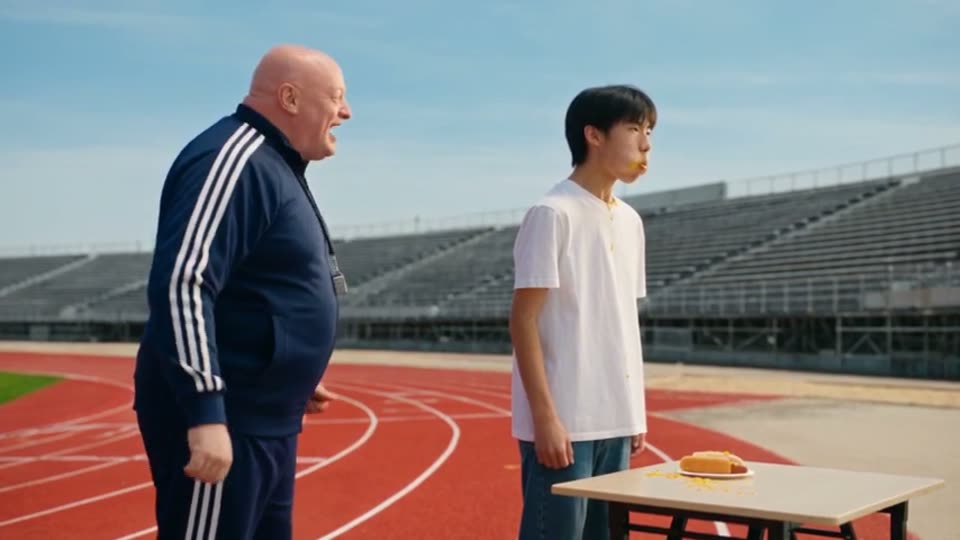
One reference design, three clips from across a finished film
Mike's design was made once, before any clip existed. Clips 1, 5 and 10 of Hot Dog King were each generated from it. The corridor, the track and the podium are different places with different light, and the face, hair and clothes are the ones in the design.


Give scene instructions a visual reference
Describe the character's recognizable features when preparing the design: their hair, build, clothing and important accessories. Save the approved image with a clear name. For the next scene, select that design and describe what the character does, where the action takes place and how the camera sees it. The image and scene instructions then provide complementary guidance.
A reference image is a direct way to specify appearance. Generation settings, including any seed options a model offers, serve a different role. Keep the visual design with the cast member so you can select it again when the story moves to another place or continues in a new episode.
What actually carries a character across clips
Start with a character image you can inspect and reuse. Review the face, hair, outfit and proportions, then save the design for the story. When preparing a scene, select the relevant cast references using the inputs supported by your chosen generation settings. This gives the scene a visual connection to the cast you have already designed.
Locations and props can have saved designs too. A recurring kitchen, a family car or a distinctive necklace can become part of the story's reference library. Select the designs relevant to the scene and describe any intended changes in the story, so the appearance and action have a shared starting point.
Zoromi makes reference preparation a visible part of the workflow. Review the characters, locations and props identified from the story, then create, replace or reuse their designs. Check the reference selections before generating the video clips. The saved designs remain available as you plan later scenes.
Direct and refine individual scenes
Give each scene a clear purpose: a close-up for a reaction, a wider shot for movement or a shared frame for a conversation. Review complete takes to choose the expression, timing and framing that fit that purpose. Keep the cast reference nearby as you decide which version belongs in the finished story.
To explore another take, update the selected references or scene instructions and regenerate that individual clip. Other clips and earlier takes remain available. For a costume change, prepare or choose a reference with the intended outfit and use it for the scenes that need it; retain the earlier design for scenes set before that change.
Explore a complete example
A complete example lets you follow the cast through changes in action, setting and camera position. Open the input story and reference designs alongside the finished clips, then watch how the scenes connect. This gives you a practical view of the workflow before you start a story of your own.
The Hot Dog King example includes its input story, cast designs and all ten clips, available without an account. Follow Mike from the school corridor to training and the final podium scene. Use the reference and finished footage together to decide how you would prepare, direct and edit your own recurring cast.
Questions
- How should I specify a recurring character's appearance?
- Save a visual reference for the cast member and select it for the relevant scenes. Use the scene text to describe the action, setting and dialogue, then choose the reference inputs offered by your generation settings.
- How do I combine a reference image with scene instructions?
- Use the reference to guide appearance and the scene instructions to describe movement, dialogue, setting and framing. Review the generated take, then refine the scene or choose another saved version for your final edit.
- Can a character change clothes and still be the same person?
- Prepare or select a character reference with the new outfit, then use that design for the scenes that need the change. Review the updated reference before generating and keep earlier designs available for other parts of the story.
- What does generating a story cost?
- Pictures, video clips and audio use Gems; review the displayed price in the workspace before generating. What a story costs depends on the settings and how much of it you generate.
Read next
Try it with a story of your own.
Paste a storyReview the price shown for each step. Pay with Gems; no subscription required.